Skip to content
School Manager Uganda · Documentation
Main website
Documentation home
  • Timetable overview/timetable
  • Manage/timetable/manage
  • Settings/timetable/settings
  • Load/timetable/load
  • Hub/timetable/hub
  • Guides

    • Build and manage timetables
      • Set operational days and periods
      • Create the class timetable
      • Use load and hub views
Contact support

Academic · Timetable

Build and manage timetables

Set school days and periods, create timetable slots, and inspect timetable views.

On this page
  • Set operational days and periods
  • Create the class timetable
  • Use load and hub views

Set operational days and periods

Open Timetable → Settings to choose operational weekdays and review the period sequence. Each period has a start time, end time, and label; breaks and supervised or co-curricular periods can be represented in the same schedule.
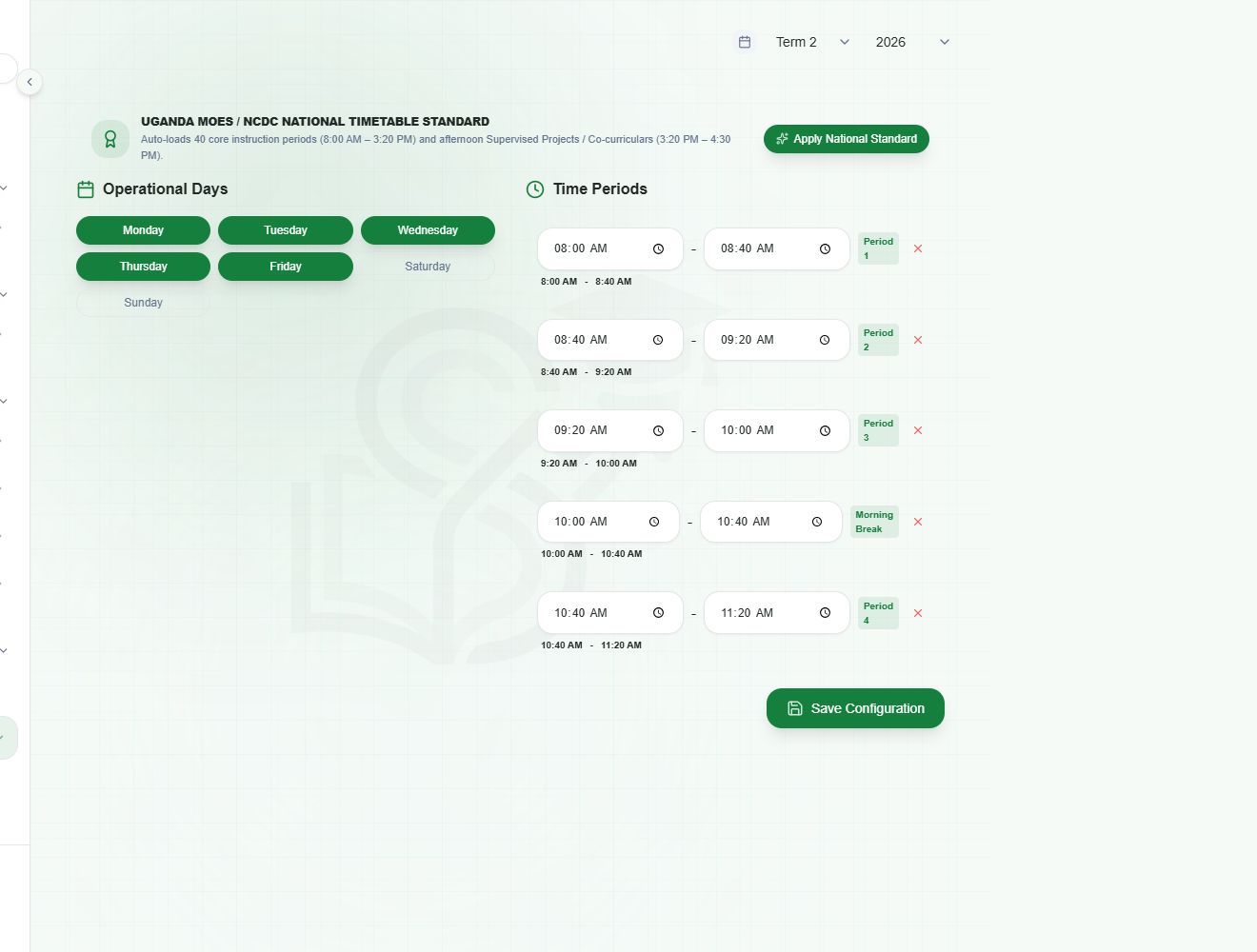
Timetable settings with operational weekdays and the period scheduleView full screen
Review school days and period times before saving. Apply National Standard is an available starting point; inspect the resulting schedule before using it.

Create the class timetable

  1. 1

    Review setup

    Confirm the academic period and make sure class, subject, staff, and period information is ready.

  2. 2

    Open timetable management

    Use Timetable → Manage to select the class and open the timetable workspace.

  3. 3

    Add or edit slots

    Choose the day, period, subject, and teacher using the controls available. Check for clashes and duplicate assignments before saving.

  4. 4

    Review the result

    Use the weekly view and timetable hub to inspect the saved schedule. Correct any missing periods or conflicts in Manage.

Use load and hub views

The timetable area also provides a teaching-load view and a hub for reviewing schedules. These are useful for checking coverage across teachers and classes. Use the current timetable settings as the source of period times.

A blank timetable can mean a class has no saved slots or that a filter is active. Confirm the selected class, year, and term first.

Have a question about this guide? Contact our team
PreviousRecord and review attendanceNextAllocate teachers and classes
School Manager Uganda · A handbook by Avizon Innovations

On this page

  • Set operational days and periods
  • Create the class timetable
  • Use load and hub views