Skip to content
School Manager Uganda · Documentation
Main website
Documentation home
  • Academics overview/academics
  • Record details/subjects/[allocationId]
  • Record details · Overview/subjects/[allocationId]/overview
  • Record details · Marks/subjects/[allocationId]/marks
  • Record details · Attendance/subjects/[allocationId]/attendance
  • Record details · Planner/subjects/[allocationId]/planner
  • Record details · Ai Helper/subjects/[allocationId]/ai-helper
  • Guides

    • Classes, subjects, and assessments
    • Enter student marks
      • Choose the subject and assessment
      • Work through the entry grid
    • Use your class and subject workspaces
    • Review vocational assessments and transcripts
Contact support

Academic · Academics

Enter student marks

Open the right class and subject, enter assessment results, and review the saved marks.

On this page
  • Choose the subject and assessment
  • Work through the entry grid

Choose the subject and assessment

Open the academics marks-entry workspace. Check the year and term, then choose the class, subject or paper, and assessment you are responsible for. If an allocation is missing, ask the academic administrator to check it.
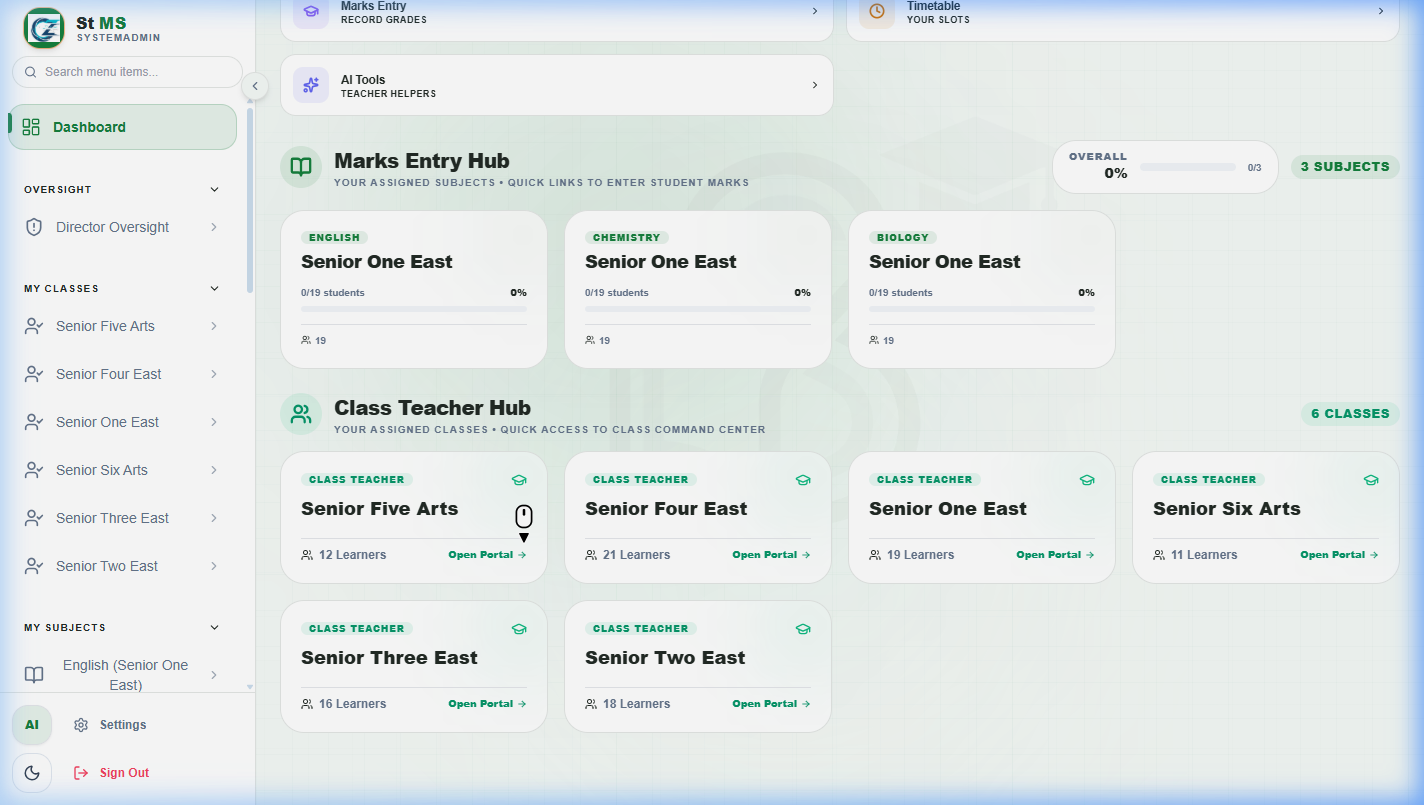
Marks entry hub with allocated subjects and assessment choicesView full screen
The hub is the starting point for entering marks. Confirm the selected subject and assessment before opening the entry grid.

Work through the entry grid

  1. 1

    Check the student list

    Confirm that the expected learners appear in the selected class and subject.

  2. 2

    Enter the assessment results

    Work in the relevant assessment columns. Use the allowed score range and follow any field validation shown.

  3. 3

    Save and review

    Use the save or submission action shown in the workspace. Check its confirmation, then review the saved values before leaving.
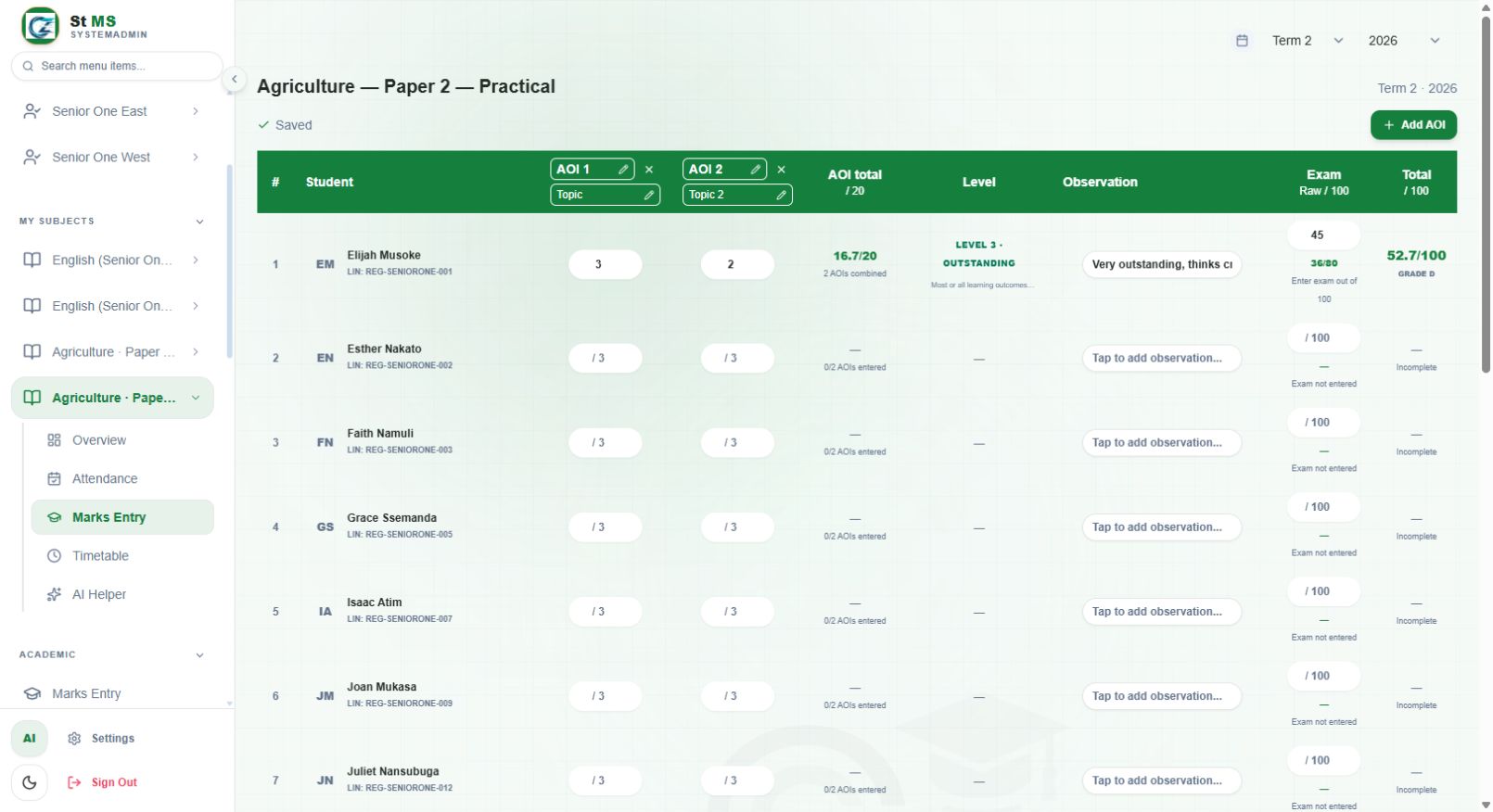
Subject mark entry grid with student rows and assessment columnsView full screen
Each row represents a student. This example shows AOI scores, a calculated AOI total, an observation, and an exam score. Check the Saved indicator and review calculated results separately from entered scores.

Do not enter zero to mean a missing result unless that is your school's approved assessment policy. Resolve missing learners or incorrect allocations before submitting results.

Have a question about this guide? Contact our team
PreviousClasses, subjects, and assessmentsNextPrepare student report cards
School Manager Uganda · A handbook by Avizon Innovations

On this page

  • Choose the subject and assessment
  • Work through the entry grid