
System · Permissions
Staff access and permissions
Give each member of staff the access they need to carry out their responsibilities.
Understand staff access
A staff member's role and capabilities determine which modules and actions they can use. A person may be able to view information without being allowed to add, edit, or delete it. Work with school leadership to agree on responsibilities before changing access.
Review the permission workspace
- 1
Choose the staff member
Open Permissions, search the staff list, and select the person whose access you are reviewing.
- 2
Review the allowed actions
Check module access and the specific actions needed for the job. Consider financial, student, and system administration access separately.
- 3
Check the result
Permission controls save changes through the workspace. Check the success or error message, then ask the staff member to confirm their own navigation and permitted tasks.
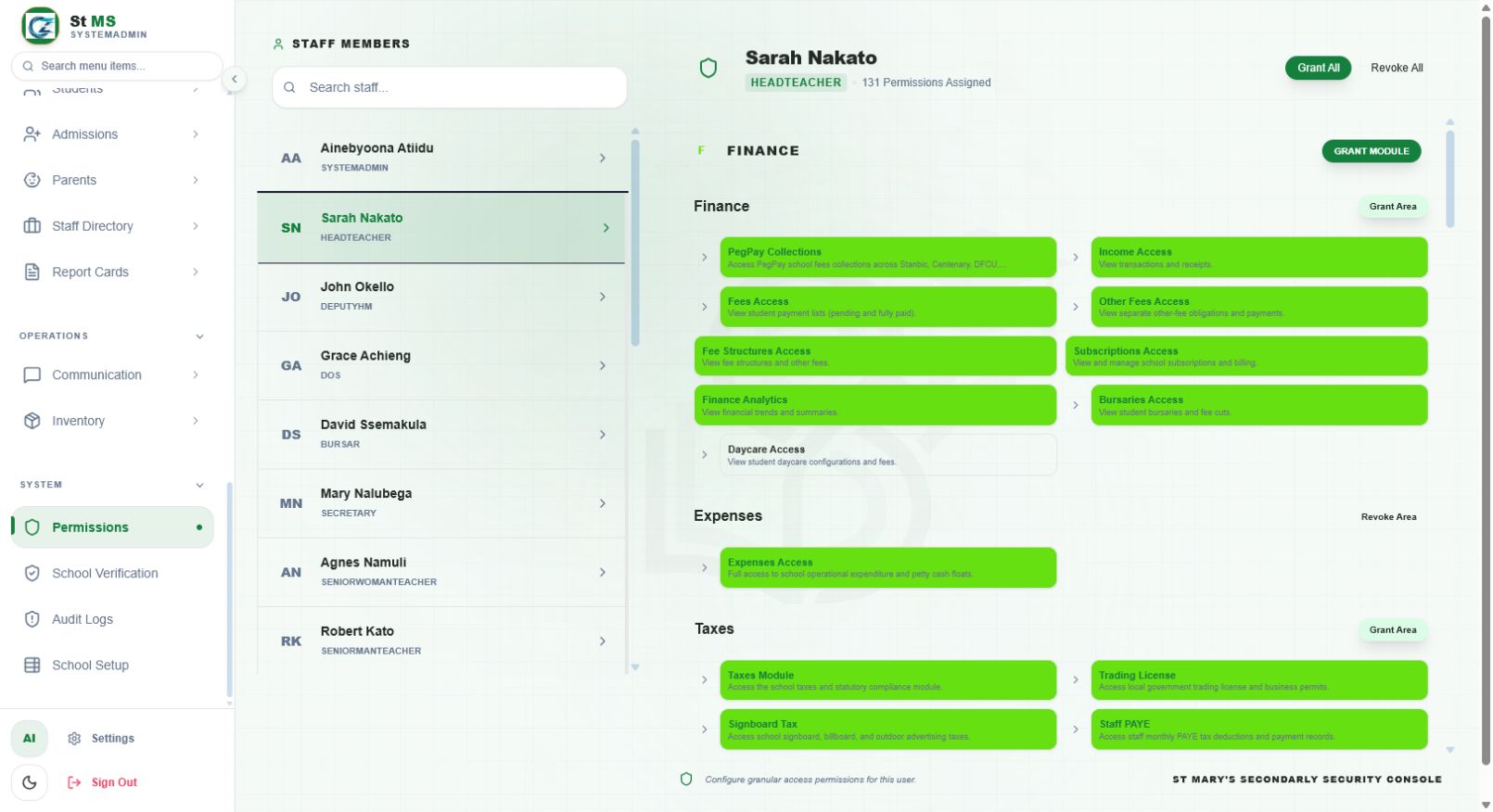 View full screen
When someone cannot access a page
- Confirm that they signed in to the correct school account.
- Check their assigned role and its permissions for that module.
- Check any class or subject allocation needed for the task.
- Ask them to refresh their workspace after the access change.