Skip to content
School Manager Uganda · Documentation
Main website
Documentation home
  • Finance overview/finance
  • Transactions/finance/transactions
  • Fees/finance/fees
  • Fee Structures/finance/fee-structures
  • Other Fees/finance/other-fees
  • Bursaries/finance/bursaries
  • Analytics/finance/analytics
  • Taxation/finance/taxation
  • Pegpay/finance/pegpay
  • Reconciliation/finance/reconciliation
  • Subscription/finance/subscription
  • Sms/finance/sms
  • Daycare/finance/daycare
  • Guides

    • Set up school fees
      • Prepare the fee structure
      • Review student balances
      • Check a student account
    • Record a fee payment
    • Navigate finance workspaces
Contact support

Finance · Finance

Set up school fees

Prepare approved class fees for the term and understand the balances workspace.

On this page
  • Prepare the fee structure
  • Review student balances
  • Check a student account

Prepare the fee structure

Open the fee structures workspace from Finance or Master Data. Check the class and term before creating or editing fees. Use the approved amounts for your school.

  1. 1

    Select the class and term

    Choose an existing class and the term the structure applies to.

  2. 2

    Enter tuition

    Set the applicable day or boarding tuition in whole Uganda shillings. Use zero or a positive amount.

  3. 3

    Review additional charges

    Choose the relevant fee items and check which charges are paid separately.

  4. 4

    Save and verify

    Review the totals, select Save fees, and confirm the saved structure before recording payments.

The fee setup has changed since the original screenshot collection. A refreshed image of Create class fees is tracked in the screenshot plan.

Review student balances

Open the fees and balances workspace. Check the selected period and filters, find the student, and review the amount charged, payments recorded, and outstanding balance before taking action.
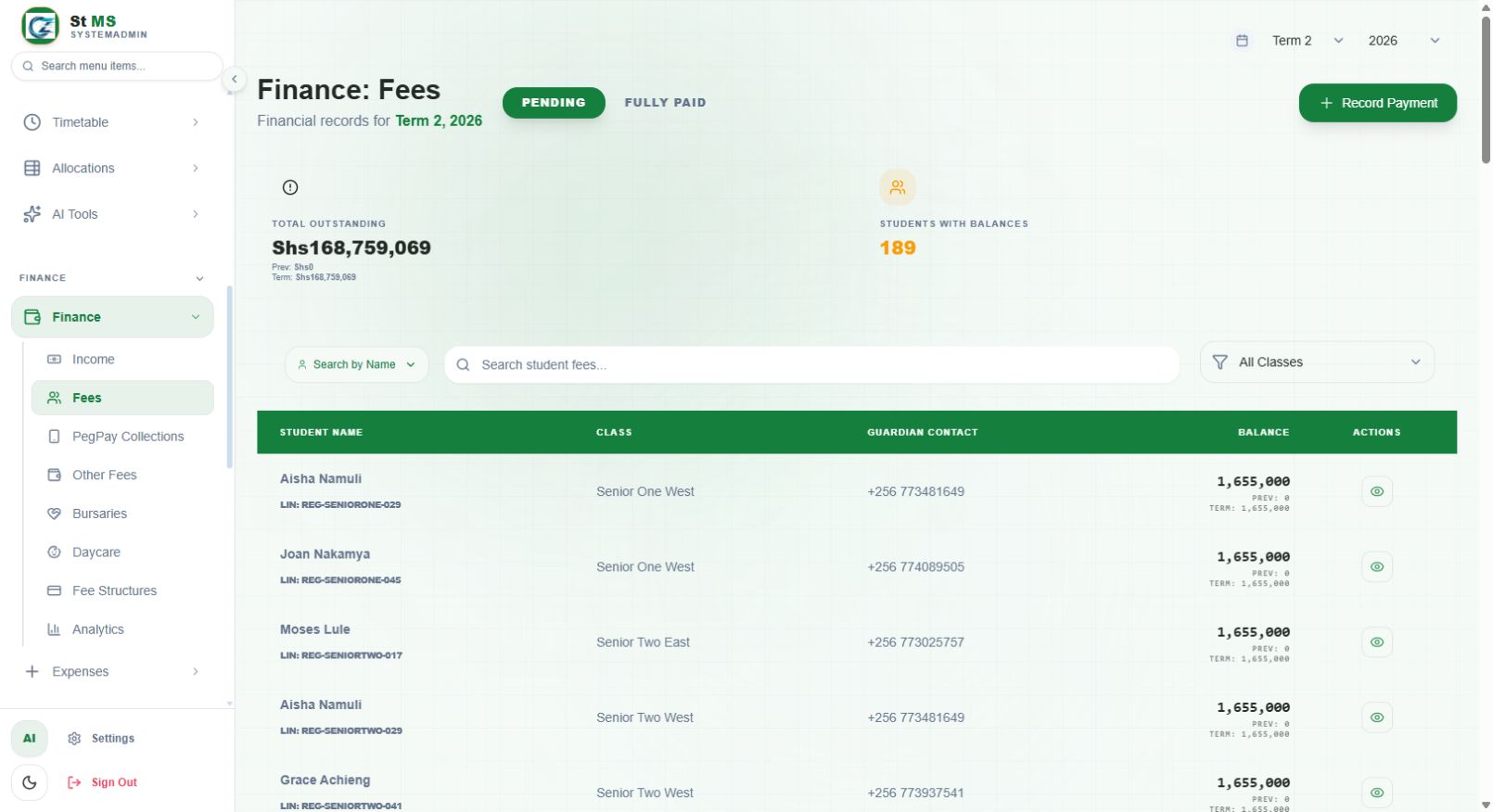
School fees workspace showing student balances and payment actionsView full screen
Use the balances workspace to identify the student's account and review their fee position. Always check the academic period alongside the balance.

Check a student account

Review a student from each applicable class and accommodation type. Confirm that their charges match the approved structure before relying on balances for collection or parent communication.

Have a question about this guide? Contact our team
PreviousPrepare student report cardsNextRecord a fee payment
School Manager Uganda · A handbook by Avizon Innovations

On this page

  • Prepare the fee structure
  • Review student balances
  • Check a student account