Skip to content
School Manager Uganda · Documentation
Main website
Documentation home
  • Finance overview/finance
  • Transactions/finance/transactions
  • Fees/finance/fees
  • Fee Structures/finance/fee-structures
  • Other Fees/finance/other-fees
  • Bursaries/finance/bursaries
  • Analytics/finance/analytics
  • Taxation/finance/taxation
  • Pegpay/finance/pegpay
  • Reconciliation/finance/reconciliation
  • Subscription/finance/subscription
  • Sms/finance/sms
  • Daycare/finance/daycare
  • Guides

    • Set up school fees
    • Record a fee payment
      • Before recording money received
      • Complete the payment entry
      • Confirm the account entry
    • Navigate finance workspaces
Contact support

Finance · Finance

Record a fee payment

Find the right student, record money received, and check the resulting account entry.

On this page
  • Before recording money received
  • Complete the payment entry
  • Confirm the account entry

Before recording money received

Check the student's name and class, the amount received, the payment channel, and the available transaction reference. Search the existing transactions first if the payment might already have been recorded.

Recording a payment documents money received. Verify the supporting transaction before entering it, and avoid recording the same payment twice.

Complete the payment entry

  1. 1

    Find the student

    Open Record Payment from Finance. In Record Income, choose School Fees and search by the student's name, LIN, or code.

  2. 2

    Enter the payment details

    Check the student and period. Enter the amount, choose the actual payment method, and complete the description and any other required fields shown.

  3. 3

    Review and save

    Compare the entry with the supporting payment information, then select Confirm & Save. Wait for a successful response.
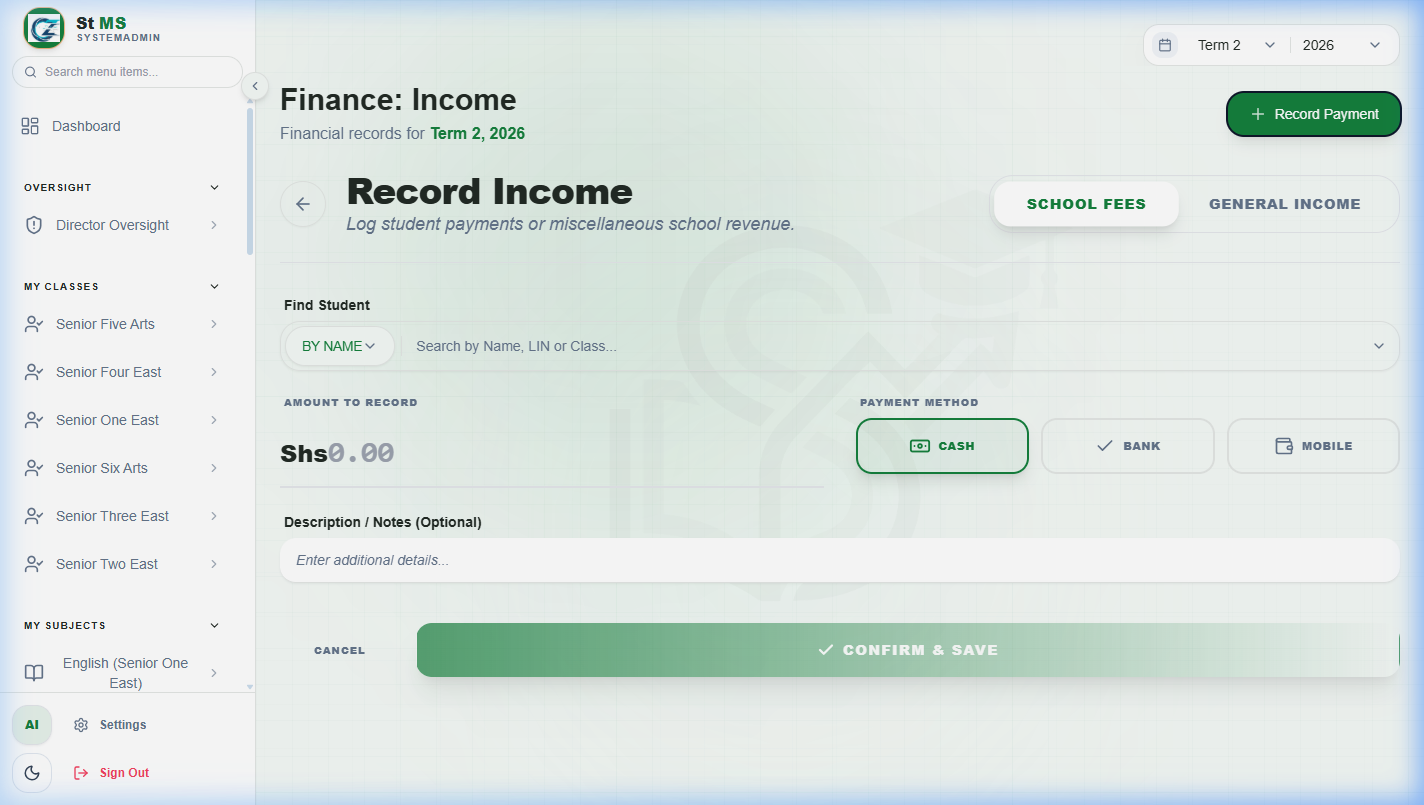
Record Income screen with School Fees selected, student lookup, amount, payment methods, and descriptionView full screen
Select School Fees rather than General Income. Find Student identifies the account; Amount to Receive and Payment Methods describe the money received. Review the entry before Confirm & Save.

Confirm the account entry

Check the saved transaction and the student's updated balance. Where a receipt action is available, review its student, amount, and reference before printing or sharing it. If the save was interrupted, check the transaction history before retrying.

Have a question about this guide? Contact our team
PreviousSet up school feesNextSchool settings
School Manager Uganda · A handbook by Avizon Innovations

On this page

  • Before recording money received
  • Complete the payment entry
  • Confirm the account entry